
Found a tool.
Is it right for you?
A screenshot is enough to start a question. Hand it to Withlet, your personal AI assistant, and ask for a comparison that fits the way you work.
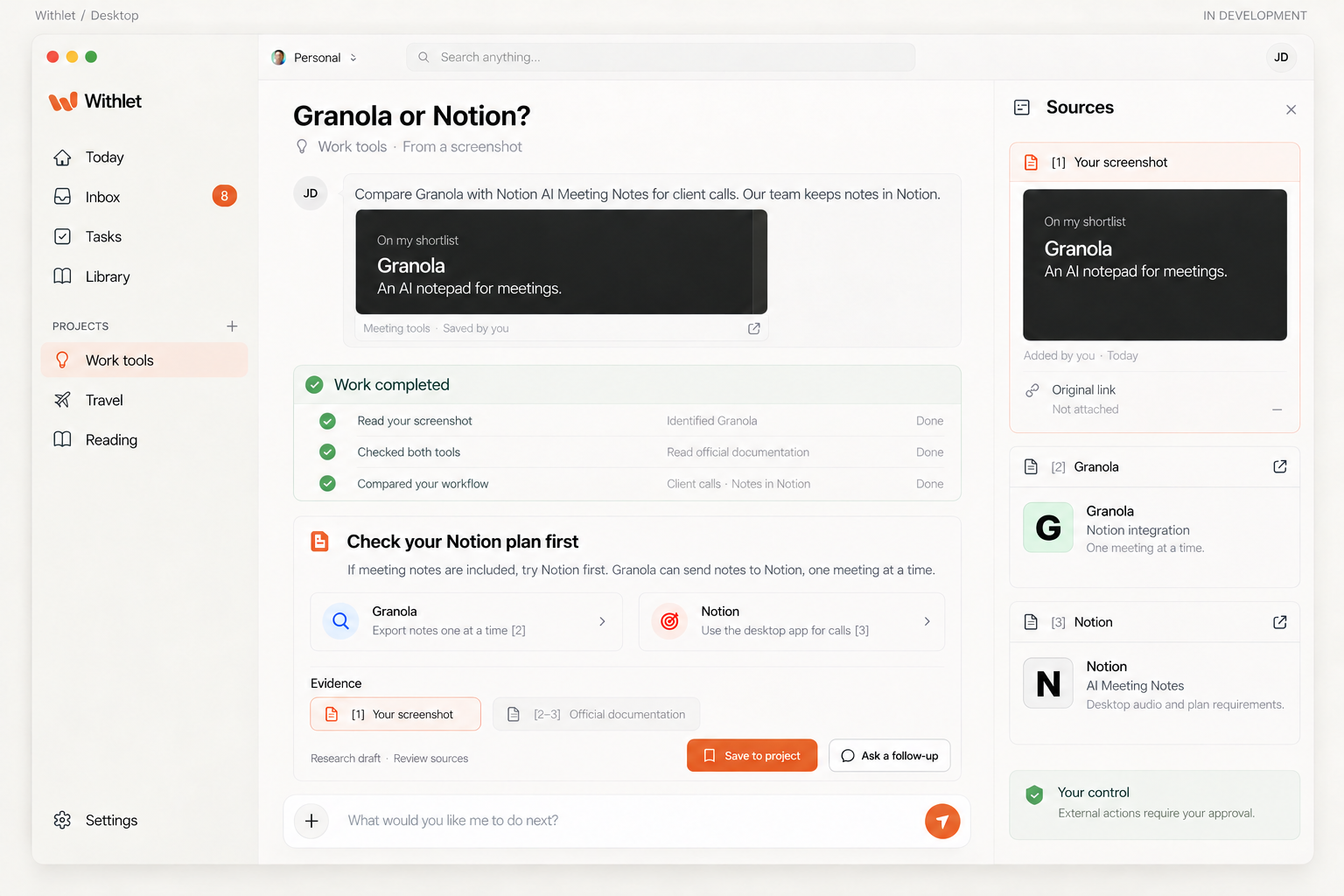
You spot Granola and save it for later. Your team already keeps its notes in Notion. Before adding another app, you want to know what would actually change for your client calls.
Start with the question behind the screenshot
Add the decision you want to make and the context that matters to you:
“Compare Granola with Notion AI Meeting Notes for client calls. Our team keeps notes in Notion.”
The screenshot supplies the starting point. Your question sets the research goal. Adding the original link gives the assistant more context to check, especially when a capture leaves out the date, author, or replies.
From a saved screenshot to a next step
Share the context you choose
Start with a screenshot, link, or note. Include what caught your attention and what you want to find out. A handoff should not require access to every app you use.
Give your assistant a task
“Compare these for client calls” gives the research a useful focus. “Our notes live in Notion” makes the answer relevant to your workflow.
Review the differences, with sources
Granola’s Notion integration sends enhanced notes one meeting at a time. Notion’s AI Meeting Notes documentation explains the plan requirements and why the desktop app is useful for capturing both sides of a call.
Choose a useful next step
Given that context, a reasonable starting point is to check whether your Notion plan includes meeting notes, then try it on one call before adding another tool. That recommendation follows from your workflow; the linked documentation lets you check the facts behind it.
What makes this different from saving a bookmark?
A bookmark keeps a destination. A screenshot preserves a moment. Withlet’s focus is the work that follows: investigating the question, connecting relevant context, and making the next decision easier. Capture and organization are the starting point for that work.
The same starting point can lead to different questions: does this tool fit my workflow, how do these recommendations compare, or what should I check before deciding? The task you hand over sets the direction.
What a screenshot can’t tell you
A screenshot may leave out context or show information that has since changed. It does not establish that a claim is true, that a product still has a feature, or that a quoted price is current. Research should check original sources where possible and make gaps clear. An AI-generated answer still needs your judgment.
When can I try Withlet?
Withlet is in development and is not publicly available yet. iPhone (iOS), Mac (macOS), and Windows are the planned platforms. The waitlist is open for development updates and early-access invitations; a release date and product pricing have not been announced.
Tell us the kind of screenshot you would hand over and the question you would want answered. That helps shape the first version. Joining the waitlist does not upload screenshots or give access to your screen, files, or other apps.
Join the early-access waitlistSee the handoff on the homepage · Read the waitlist privacy note